Welcome! This manual will help you set up and use your recording kit for your online interview or audio book recording sessions. The kit contains every thing you need to make clear, professional sounding recordings. Don’t worry – we’ve kept things simple, and included video guides to help you every step of the way.
What’s In Your Kit
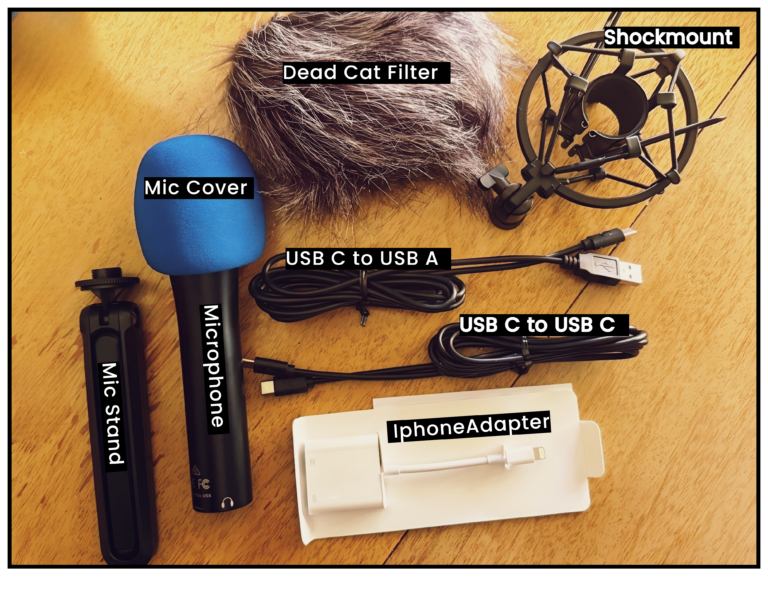
Your recording kit includes:
AudioTechnica ATR2100x USB Microphone(Mic)
Mic stand
USB cable – USB A to USB C (Mic to Computer)
USB cable – USB C to USB C (Mic to Computer)
Iphone Adapter- USB Cable to Lightening
OPTIONAL Wind filter (“Dead Cat”)
OPTIONAL Shock mount (mic stabilizer)
Overview
Welcome to your foray into the world of sound recording. You will be surprised at how easy it is and Andrea will aid you in getting a great recording and an amazing interview.
We’ve prepared this guide (with accompanying videos) to show you how to put your recording kit together. Here are the steps:
Unfold the mic stand and place it on a sturdy surface
Shock Mount (optional)
Attach the shock mount to the stand (optional)
Insert the microphone into the shock mount
Attach the Dead Can Filter to the microphone
Connect the appropriate USB cable to the microphone
Connect headphones to your microphone
Connect the other end of the USB cable to your laptop, computer, ipad or iphone
Test to record and listen. (Optional)
Press the Riverside FM link at the arranged time that was emailed to you.
Ready? Let’s Do It!
Mic to Computer Setup
Unbox all the parts of the kit. Place the microphone, stand, and cables to one side, and watch the video.
The type of USB port your computer or laptop has determines which cable you use. Try both the black cables. Plug one end into the mic and the other into the computer.
Cable End Connectors
Cables can be confusing if you don’t know the name for the different end connectors. It’s also made clear as we go along, but this handy chart should help.
Connect Your Laptop or Desktop Computer
Test Your
Laptop or Desktop Computer (Windows)
Microphone Set Up
Connect Your Newer
iPhone 15 (or later) or
iPad Pro (generation 3, 2018)
iPad Air (generation 4, 2020)
iPad(2022 or later)
Connect Your Newer
iPhone 15 (or later) or
iPad Pro (generation 3, 2018)
iPad Air (generation 4, 2020)
iPad(2022 or later)
Test Your
iPhone or iPad
Microphone Set Up
Connect Your Older (than above) iPhone or iPad Using the White Adapter